搜尋本站文章

顯示具有 Windows Cluster 標籤的文章。 顯示所有文章

2017-07-20

[SQL Server] Log Path of Failover Cluster Instance Diagnostics, sys.dm_os_server_diagnostics_log_configurations 容錯移轉叢集診斷記錄檔的存放路徑


使用 sys.dm_os_server_diagnostics_log_configurations,可取得 SQL Server 容錯移轉叢集診斷記錄檔的存放路徑等相關資訊。

以 SQL Server 2016 為例,容錯移轉叢集診斷記錄檔的存放路徑,預設是:
C:\Program Files\Microsoft SQL Server\MSSQL13.MSSQLSERVER\MSSQL\Log

-- 使用 sys.dm_os_server_diagnostics_log_configurations,查詢 SQL Server 容錯移轉叢集診斷記錄檔的存放路徑
USE master
GO
SELECT is_enabled, path, max_size, max_files
FROM sys.dm_os_server_diagnostics_log_configurations
GO

-- 01_使用 sys.dm_os_server_diagnostics_log_configurations,查詢 SQL Server 容錯移轉叢集診斷記錄檔的存放路徑


-- 02_檔案總管_ 查詢 SQL Server 容錯移轉叢集診斷記錄檔的存放路徑


參考資料

[SQL Server] ServerProperty('ErrorLogFileName') , Error log file location 錯誤紀錄檔: 目前最新的完整檔案路徑與檔案名稱
http://sharedderrick.blogspot.tw/2017/07/sql-server-serverpropertyerrorlogfilena.html

sys.dm_os_server_diagnostics_log_configurations
https://docs.microsoft.com/en-us/sql/relational-databases/system-dynamic-management-views/sys-dm-os-server-diagnostics-log-configurations

sys.dm_os_server_diagnostics_log_configurations
https://technet.microsoft.com/zh-tw/library/gg471697(v=sql.110).aspx

View and Read Failover Cluster Instance Diagnostics Log
https://docs.microsoft.com/en-us/sql/sql-server/failover-clusters/windows/view-and-read-failover-cluster-instance-diagnostics-log

2017-07-16

[PowerShell] Get-ClusterLog: Generate Windows cluster log for troubleshooting (產生 Cluster.log 進行錯誤排除)


對 容錯移轉叢集 執行錯誤排除時,將需要分析 Windows cluster log (Cluster.log)。

可以使用 PowerShell 的 Get-ClusterLog 來產生 全部 或是 指定 節點伺服器的系統記錄檔。

本文以 [SQL Server] AlwaysOn, Error 41131, failover failed,容錯移轉 失敗 為例

逐步帶領各位使用 PowerShell 的 Get-ClusterLog 來產生 Cluster.log,執行 錯誤排除 [NT AUTHORITY\SYSTEM] 帳戶權限不足 的問題。


目的:產生 Failover Cluster log

作業系統:Windows 2008 R2/2012/2012 R2/2016 Cluster

請使用 「系統管理員身分」來啟動 「Windows PowerShell ISE」

提醒:請到各個 Node Server 去檢視  log。


-- 為每個 Node Server 產生 Failover Cluster log,
-- 並存放於預設的本機路徑:C:\Windows\Cluster\Reports
-- -UseLocalTime:採用 LocalTime,若未指定此參數,將使用 Greenwich Mean Time (GMT)。

Get-ClusterLog -Destination . -UseLocalTime

-- 010_執行Get-ClusterLog


-- 011_檢視產生的 Failover_Cluster_log


[PowerShell] Get-ClusterLog: Generate Windows cluster log for troubleshooting


工作01. 使用 [PowerShell] Get-ClusterLog: 產生 Windows cluster log


-- 語法
Get-ClusterLog –Node [SQL Server node name] –TimeSpan 15


-- 範例
Get-ClusterLog –Node AGN02 –TimeSpan 15


-TimeSpan
指定要產生 Cluster.log 的時間間距,以分鐘為單位。
例如:–TimeSpan 15,是指產生最近 15 分鐘內的 Cluster.log。
- Node  指定需要產生 Cluster.log 節點伺服器。
-UseLocalTime採用 LocalTime,若未指定此參數,將使用 Greenwich Mean Time (GMT)

Cluster.log
系統紀錄 Cluster.log 預設是存放在 %WINDIR%\cluster\reports。
例如:C:\Windows\Cluster\Reports。


-- 01_01_PowerShell 產生 Windows cluster log


工作02. 分析 Windows cluster log(Cluster.log)

分析 Cluster.log

搜尋以下文字:
Failed to run diagnostics command.
The user does not have permission to perform this action.

-- 02_檢視Cluster_Log


-- 03_查詢到相關聯的錯誤_The user does not have permission to perform this action.


分析
在 Cluster.log 報告中,可以看到系統紀錄了 權限不足 的問題。
這是因為  [NT AUTHORITY\SYSTEM] 帳戶的權限不足,無法執行 「健全狀況」的偵測,也無法執行 「容錯移轉(Failover) 」。

解決方案

賦予 [NT AUTHORITY\SYSTEM] 帳戶以下權限來解決問題:
  1. Alter Any Availability Group
  2. Connect SQL
  3. View server state
參考


 補充資訊

-- 10_Error_41131


-- 30_SQL_Log


-- 31_發出Failover


-- 32_Error_Reported_02_TO_01


-- 33_RESOLVING_PENDING_FAILOVER


-- 34_state_change


-- 35_Rollback_Failover


-- 36_state_change__SECONDARY_NORMAL


-- 50_SQL_Log


-- 51_發出 Failover


參考文件

[SQL Server] AlwaysOn, Error 41131, failover failed,容錯移轉 失敗
http://sharedderrick.blogspot.tw/2017/07/sql-server-alwayson-error-41131.html

Cannot create a high-availability group in Microsoft SQL Server 2012
https://support.microsoft.com/en-us/help/2847723/cannot-create-a-high-availability-group-in-microsoft-sql-server-2012

Windows Server 2008 R2: Troubleshooting Failover Clusters
https://technet.microsoft.com/en-us/library/hh272674.aspx

Microsoft.FailoverClusters.PowerShell
https://technet.microsoft.com/en-us/library/ee461009.aspx

Get-ClusterLog
https://technet.microsoft.com/itpro/powershell/windows/failoverclusters/get-clusterlog

2012-06-11

影片:SQL Server 2012 Active/Active模式-以AlwaysOn可用性群組為例(6)


簡介:
在本次課程中,將延續先前的主題,繼續討論在AlwaysOn可用性群組上,如何組態為:Active/Active模式,實踐讀寫分流、分散負載的作法,充分的使用到各台伺服器上的資源。
並討論應用程式端應如何組態等相關注意事項。

使用環境:
SQL Server 2012 RTM 11.0.2100.60

主題:
SQL Server 2012 Active/Active模式-以AlwaysOn可用性群組為例(6)

影片:SQL Server 2012 Active/Active模式-以AlwaysOn可用性群組為例(5)


簡介:
在本次課程中,將延續先前的主題,繼續討論在AlwaysOn可用性群組上,如何使用SSMS管理工具內建的容錯移轉可用性群組精靈,來執行手動容錯移轉或強制手動容錯移轉。
並討論如何使用Transact-SQL方式來監視AlwaysOn可用性的運行狀態。

使用環境:
SQL Server 2012 RTM 11.0.2100.60

主題:
SQL Server 2012 Active/Active模式-以AlwaysOn可用性群組為例(5)

影片:SQL Server 2012 Active/Active模式-以AlwaysOn可用性群組為例(4)


簡介:
在本次課程中,將繼續討論在AlwaysOn可用性群組上,如何使用AlwaysOn儀表板來檢視與監控AlwaysOn 可用性群組及其可用性複本和資料庫的運行健全狀況。

使用環境:
SQL Server 2012 RTM 11.0.2100.60

主題:
SQL Server 2012 Active/Active模式-以AlwaysOn可用性群組為例(4)

影片:SQL Server 2012 Active/Active模式-以AlwaysOn可用性群組為例(3)


簡介:
在本次課程中,將討論在AlwaysOn可用性群組上,如何建立「可用性群組接聽程式」,應用程式端將使用此所組態的虛擬網路名稱、接聽程式通訊埠、虛擬 IP等來資訊來連線。
並且討論如何將其他次要角色上的資料庫加入「可用性群組」內。

使用環境:
SQL Server 2012 RTM 11.0.2100.60

主題:
SQL Server 2012 Active/Active模式-以AlwaysOn可用性群組為例(3)

影片:SQL Server 2012 Active/Active模式-以AlwaysOn可用性群組為例(2)


簡介:
在本次課程中,將討論在AlwaysOn可用性群組上,安裝SQL Server 2012的注意事項,以及如何啟用AlwaysOn可用性群組,並建立「可用性群組」等作業。

使用環境:
SQL Server 2012 RTM 11.0.2100.60

主題:
SQL Server 2012 Active/Active模式-以AlwaysOn可用性群組為例(2)

影片:SQL Server 2012 Active/Active模式-以AlwaysOn可用性群組為例(1)


簡介:
本系列主題將討論 SQL Server 2012高可用性新增加的功能:AlwaysOn可用性群組。

此項技術將取代先前的資料庫鏡像,其結合了資料庫鏡像與Windows Server容錯移轉叢集(WSFC)的優點,不但提供五個可用性複本,讓你可以依據業務需求組態為非同步認可與同步認可模式,更支援Active/Active模式,讓寫入與讀取分流,分散負載,讓你所購買的各台伺服器,都能夠充分的被使用到。


相關資料

影片:SQL Server 2012 Active/Active模式-以AlwaysOn可用性群組為例(1)
http://sharedderrick.blogspot.tw/2012/06/sql-server-2012-activeactive-alwayson1.html

影片:SQL Server 2012 Active/Active模式-以AlwaysOn可用性群組為例(2)
http://sharedderrick.blogspot.tw/2012/06/sql-server-2012-activeactive-alwayson2.html

影片:SQL Server 2012 Active/Active模式-以AlwaysOn可用性群組為例(3)
http://sharedderrick.blogspot.tw/2012/06/sql-server-2012-activeactive-alwayson3.html

影片:SQL Server 2012 Active/Active模式-以AlwaysOn可用性群組為例(4)
http://sharedderrick.blogspot.tw/2012/06/sql-server-2012-activeactive-alwayson4.html

影片:SQL Server 2012 Active/Active模式-以AlwaysOn可用性群組為例(5)
http://sharedderrick.blogspot.tw/2012/06/sql-server-2012-activeactive-alwayson5.html

影片:SQL Server 2012 Active/Active模式-以AlwaysOn可用性群組為例(6)
http://sharedderrick.blogspot.tw/2012/06/sql-server-2012-activeactive-alwayson6.html


使用環境:
SQL Server 2012 RTM 11.0.2100.60

主題:
SQL Server 2012 Active/Active模式-以AlwaysOn可用性群組為例(1)


2011-04-09

使用DiskPart來備份與設定磁碟的:DISK ID、「磁碟簽章」、「磁碟識別碼」。事件識別碼 1034,叢集磁碟,Cluster Disk

若是遭遇到「磁碟簽章(disk signatures)」不一致的問題,例如在Windows事件檢視器內將會記錄以下的資料:
事件識別碼:1034
來源: ClusDisk
描述: 找不到叢集磁碟資源 %driveletter%相關聯的磁碟。磁碟的預期的簽章 %磁碟簽章 %。
Event ID: 1034
Source: ClusDisk
Description: The disk associated with cluster disk resource %DriveLetter% could not be found. The expected signature of the disk was %Disk Signature%.


若是要備份與設定「磁碟簽章」,在 Windows Server 2000/2003版本上可以使用 Dumpcfg.exe 公用程式。

而在 Windows Server 2008 版本上則是可以使用 DISKPART.exe 公用程式來處理與磁碟相關的問題。

「磁碟簽章(disk signatures)」,又可以稱為:「磁碟識別碼」、「DISK ID」。


實作練習:使用 DiskPart 公用程式來備份與設定磁碟的:DISK ID、「磁碟簽章」、「磁碟識別碼」

請參考以下的範例程式碼:
步驟01. 開啟「命令提示字元」視窗,執行以下的 DISKPART 命令來查詢此「節點伺服器」上的磁碟清單,請參考範例程式碼1與下圖1所示:
DISKPART
LIST DISK

使用的參數說明:
LIST DISK:列出此伺服器中每個磁碟的摘要資料


在上圖1中,可以觀察到此「節點伺服器」上的磁碟清單是磁碟 0 到磁碟 6。若在非擁有磁碟的「節點伺服器」上執行上述的查詢作業,也是會獲得相同的磁碟清單資料,這類似於使用「電腦管理」工具內的「磁碟管理」所顯示之結果,請參考下圖2所示:


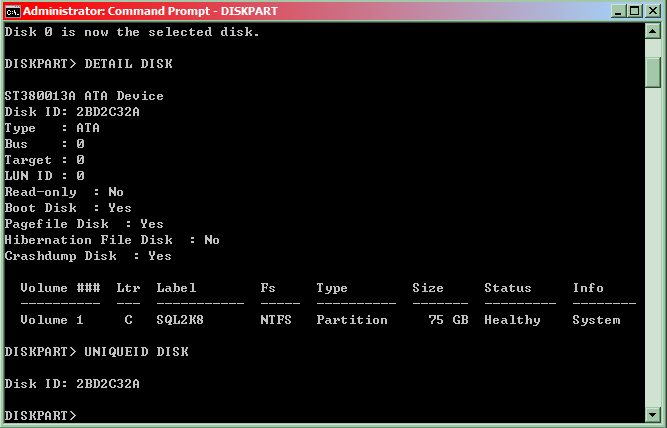
步驟02. 若要查詢「磁碟簽章」,請繼續執行以下的範例程式碼2與下圖3所示::
SELECT DISK 2
DETAIL DISK

使用的參數說明:
SELECT DISK [=n] :SELECT DISK 指令會將焦點設至具有所指定的磁碟代號的磁碟。如果沒有指定磁碟代號,此指令會顯示目前設為焦點的磁碟。
DETAIL DISK:DETAIL DISK指令會輸出目前設為焦點的磁碟之詳細資訊,例如:磁碟識別碼(也就是「磁碟簽章」編號)、型態、狀態、LUN 識別碼、是否為「叢集磁碟」等等。


步驟03. 若要設定此磁碟的「磁碟簽章」,請繼續執行以下的範例程式碼3與下圖4所示:
UNIQUEID DISK
UNIQUEID DISK ID=C4E63099
UNIQUEID DISK
EXIT

使用的參數說明:
UNIQUEID:顯示或設定 GUID 磁碟分割表格 (GPT) 識別碼或磁碟的主開機記錄 (MBR) 簽章。


以下為英文版本的執行畫面:


參考資料:
DiskPart
http://technet.microsoft.com/en-us/library/cc770877%28WS.10%29.aspx

Uniqueid
http://technet.microsoft.com/en-us/library/cc730793%28WS.10%29.aspx

Diskpart 指令行公用程式的說明
http://support.microsoft.com/kb/300415/zh-tw

如何擴充 Windows Server 2003 中、 在 Windows XP 中、 在 Windows 2000 及 Windows Server 2008 中的一個資料磁碟區
http://support.microsoft.com/kb/325590

如何更換 Windows 2000 或 Windows 2003 伺服器叢集上的磁碟
http://support.microsoft.com/kb/305793

從伺服器叢集上的事件識別碼 1034年復原
http://support.microsoft.com/kb/280425

System Partition goes offline on Windows Server 2008 and Windows server 2008 R2 after installing some 3rd Party Disk or Storage Management Software.
http://support.microsoft.com/kb/2419286/en-us

下載 Cluster Server Recovery Utility (ClusterRecovery.exe) 管理工具
http://www.microsoft.com/downloads/en/details.aspx?FamilyID=2be7ebf0-a408-4232-9353-64aafd65306d

DiskPart.exe
http://www.microsoft.com/downloads/en/details.aspx?FamilyID=0fd9788a-5d64-4f57-949f-ef62de7ab1ae

2011-03-21

下載與安裝 Windows Storage Server 2008 R2、Microsoft iSCSI 軟體目標 3.3 (Microsoft iSCSI Software Target 3.3),版本編號:3.3.16544


更新日期:2011/04/05

在 Microsoft Download 已經開放下載使用 Microsoft iSCSI Software Target 3.3


請參考以下的網址:
Microsoft iSCSI Software Target 3.3
http://www.microsoft.com/downloads/en/details.aspx?FamilyID=45105d7f-8c6c-4666-a305-c8189062a0d0

Microsoft iSCSI Software Target 3.3 for Windows Server 2008 R2 available for public download
http://blogs.technet.com/b/josebda/archive/2011/04/04/microsoft-iscsi-software-target-3-3-for-windows-server-2008-r2-available-for-public-download.aspx


以下是關於 Windows Storage Server 2008 R2 摘要說明:
Windows® Storage Server 2008 R2 是 Windows Server® 2008 R2 作業系統,但是已特別針對與網路連接的存放裝置搭配使用進行最佳化。
Microsoft iSCSI 軟體目標 3.3 是可以與 Windows Storage Server 2008 R2 搭配使用的選用套件

下列版本提供 Windows Storage Server 2008 R2:
(1) Windows Storage Server 2008 R2 Workgroup
(2) Windows Storage Server 2008 R2 Standard
(3) Windows Storage Server 2008 R2 Enterprise
Enterprise Edition 支援容錯移轉叢集。

以下是 Windows Storage Server 2008 R2 版本所支援的功能:


以下是關於 Microsoft iSCSI 軟體目標 3.3 摘要說明:
iSCSI 軟體目標會建立 iSCSI 目標和虛擬磁碟,而您可以透過 Microsoft iSCSI 軟體目標主控台進行管理。

Internet Small Computer Systems Interface (iSCSI) 是支援透過 TCP/IP 網路存取存放裝置、促進存放合併,以及整個組織存放資源共用的通訊協定。
您可以使用 Microsoft® iSCSI 軟體目標 3.3 建立 iSCSI 目標和 iSCSI 虛擬磁碟。

然後即可以使用「Microsoft iSCSI 軟體目標」主控台管理所建立的所有 iSCSI 目標和虛擬磁碟。
iSCSI 軟體目標所提供的其他功能包括支援取得虛擬磁碟的快照。

它也包括用來設定以及維護 iSCSI 軟體目標的精靈。
Microsoft iSCSI 軟體目標是 Windows Storage Server 2008 R2 的選用套件。

下列作業系統支援 iSCSI 軟體目標 3.3:
(1) Windows Storage Server 2008 R2 Workgroup Edition
(2) Windows Storage Server 2008 R2 Standard Edition
(3) Windows Storage Server 2008 R2 Enterprise Edition

以下是 Microsoft iSCSI 軟體目標的版本和平台支援性詳細資料:
(1) Microsoft iSCSI 軟體目標 3.1 預設會安裝於 Windows Unified Data Storage Server 2003,而且可做為 Windows Storage Server 2003 R2 的選用附加元件。

(2) OEM 可以將 Microsoft iSCSI 軟體目標 3.2 預先安裝在 Windows Storage Server 2008 上。也可以做為 Windows Storage Server 2008 R2 的選用附加元件。

(3) OEM 可以將 Microsoft iSCSI 軟體目標 3.3 預先安裝在 Windows Storage Server 2008 R2 上。也可以做為 Windows Storage Server 2008 R2 的選用附加元件。

(4)Microsoft iSCSI 軟體目標 3.1、3.2 和 3.3 版可以與符合標準 iSCSI 通訊協定的 iSCSI 啟動器交互操作。
根據特定 OEM 的要求,Microsoft 已測試過下列非 Microsoft iSCSI 啟動器的探索、登入和登出以及 I/O,以判斷與 Microsoft iSCSI 軟體目標的交互操作性:
(a)SUSE Linux Enterprise Server 10
(b) Red Hat Enterprise Linux 5
(c)QLogic QLE4062C-SP,韌體 3.00.01.24


下載 Windows Storage Server 2008 R2
名稱:Windows Storage Server 2008 R2 Embedded (Standard, Enterprise, Workgroup) with iSCSI Software Target 3.3 (x64) - DVD (Multiple Languages)

發佈日期:2010/9/27

檔案名稱:mu_windows_storage_server_2008_r2_embed_stand_ent_work_iscsi_software_target_3.3 _x64_dvd_587719.iso


經由 MSDN 網站下載的 iso 檔案,並非一般的開機光碟之檔案。

需要自行解壓縮,由 iso 檔案解出來的檔案是:
WSS2008R2+iSCSITarget33.exe

請使用滑鼠雙擊此檔案,進行解壓縮的作業:


完成解壓縮後,將可以看到以下的兩個檔案:
(1) Windows_Storage_Server_2008_R2.iso
(2) iSCSI_Software_Target_33.iso


以下是 Windows_Storage_Server_2008_R2.iso 檔案的內容:


以下是 iSCSI_Software_Target_33.iso 檔案的內容:


安裝流程,請參考下圖所示:


上圖是來自於以下的文章:
Windows Storage Server 2008 R2 and the Microsoft iSCSI Software Target 3.3 are available on MSDN/TechNet - here's how to install them
http://blogs.technet.com/b/josebda/archive/2010/09/27/windows-storage-server-2008-r2-and-the-microsoft-iscsi-software-target-3-3-are-available-on-msdn-technet-here-s-how-to-install-them.aspx

由上圖描述可知:
(1) 先自行安裝好 Windows Server 2008 R2 作業系統。

(2) 下載與解壓縮 Windows Storage Server 2008 R2 檔案。
包含有: Windows_Storage_Server_2008_R2.iso 與 iSCSI_Software_Target_33.iso。

(3) 在 Windows Server 2008 R2 作業系統上,再安裝 Windows Storage Server 2008 R2 相關的檔案。


實作練習:安裝與建置 Windows Storage Server 2008 R2


實作練習的環境說明:
1. 使用 Windows Server 2008 R2 Enterprise 中文版本。

在本次實作練習中,將完成以下的工作:
(1) 安裝 Windows Storage Server 2008 R2 packages。
(2) 安裝 Microsoft iSCSI 軟體目標 3.3。
(3) 檢視 Microsoft iSCSI 軟體目標。

工作1. 安裝 Windows Storage Server 2008 R2 packages

步驟01. 使用管理者身分登入 Windows Server 2008 R2 作業系統,設定載入 Windows_Storage_Server_2008_R2.iso 檔案。

步驟02. 執行「檔案總管」,瀏覽 *.iso 檔案的內容,選擇執行以下的檔案(以存放在磁碟D 為例):
D:\Windows Storage Server 2008 R2\Windows6.1-KB982050-x64-EnterpriseBranding.MSU

此為 Windows Storage Server 2008 R2 Enterprise 版本的安裝封裝之檔案。

步驟03. 在「Windows Update Standalone Installer」視窗,點選試「是」,接受安裝 KB982050:Windows 更新。

步驟04. 在「下載並安裝更新」視窗,點選「關閉」。

工作2. 安裝 Microsoft iSCSI 軟體目標 3.3

步驟01. 使用管理者身分登入 Windows Server 2008 R2 作業系統,設定載入 iSCSI_Software_Target_33.iso 檔案。

步驟02. 執行「檔案總管」,瀏覽 *.iso 檔案的內容,選擇執行以下的檔案(以存放在磁碟D 為例):
D:\x64\iscsitarget.msi

此為 Microsoft iSCSI 軟體目標 3.3 安裝封裝之檔案。

步驟03. 在「Microsoft iSCSI Software Target Setup」視窗,點選「Next」。

步驟04. 在「End-User License Agreement」視窗,勾選「I accept the terms in the License Agreement」,點選「Next」。

步驟05. 在「Destination Folder」視窗,接受預設值的安裝路徑,點選「Next」。

步驟06. 在「Join the Customer Experience Improvement Program」視窗,接受預設值,點選「Next」。

步驟07. 在「Ready to install Microsoft iSCSI Software Target」視窗,點選「Install」。

步驟08. 點選「Finish」,完成安裝。

工作3. 檢視 Microsoft iSCSI 軟體目標

步驟01. 點選「開始」\「系統管理工具」,選擇「Microsoft iSCSI 軟體目標 」。

步驟02. 點選上方工具選單的「說明」\「關於 Microsoft iSCSI 軟體目標 」。

可以看到「Microsoft iSCSI 軟體目標」的版本編號是:3.3.16544。

步驟03. 點選「確定」,完成檢視作業。


參考資料:
Windows Storage Server 2008 R2
http://www.microsoft.com/Windowsserver2008/en/us/wss08.aspx

Windows Storage Server 2008 R2 and the Microsoft iSCSI Software Target 3.3 are available on MSDN/TechNet - here's how to install them
http://blogs.technet.com/b/josebda/archive/2010/09/27/windows-storage-server-2008-r2-and-the-microsoft-iscsi-software-target-3-3-are-available-on-msdn-technet-here-s-how-to-install-them.aspx

Windows Storage Server 2008 與 iSCSI Software Target 3.2 安裝入門
http://sharedderrick.blogspot.com/2010/06/windows-storage-server-2008-iscsi.html